1.0 Hardware and Software Requirements
- Windows 10 Pro (Win 7 SP1 also supported)
- 100 MB free hard disk space
- Administrator privileges
2.0 Windows 10 Setup
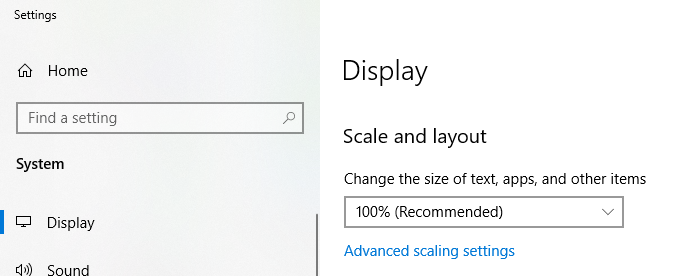
- Open the Windows Menu and select Settings. Select SystemàDisplay.
- Make sure Scale is set to 100%
- Setup user specific File Explorer Options
- Open Windows Explorer. Win Key +’E’
- From the File menu select “Change folder and search options”
- Select the “View” tab.
- Check “Display the full path in the title bar” and remove the check before “Hide extensions for known file types”.
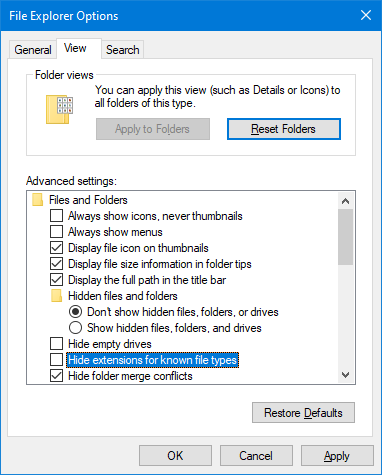
- After all changes are made click “Apply”.
3.0 Comptek Training Software Setup
3.1 Install Software
- Log in as the Administrator Account and continue with the following steps.
- Run Setup.exe to install all the prerequisites needed and then the Training Software install will start automatically.
- Alternately run the SetupComptekTrainingPTSv#.#.#.msi installation directly. If prompted to install prerequisites do so.
- By default, Training will install to the “C:\Comptek” directory. The training guide assumes this path do not change it unless necessary.
- Run the Comptek Test System to verify that the training software was installed correctly.
3.2 Uninstall Software
- Before uninstalling make sure all programs are shutdown.
- Use “Programs and Features” from the Control panel to uninstall “Comptek Test System Training”.
- After uninstalling the software, the folders C:\Comptek\TrainingPTS and C:\Comptek\TrainingCDS can be deleted. These folders will still contain configuration and log files created as part of running the Training software.